
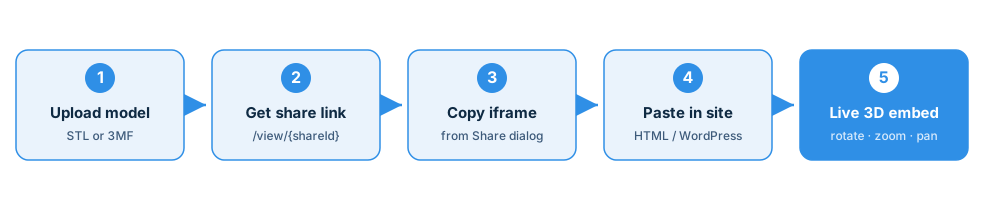
A static screenshot of a 3D part tells visitors what it looks like from one angle. An embedded viewer lets them rotate it, zoom into a detail, and see the geometry the way they would in a CAD tool — without leaving your page and without installing anything. STLViewer.online turns any uploaded STL, 3MF, or PLY model into a single line of HTML you can drop onto a blog post, product page, documentation site, or course material.
This guide walks through the whole process: getting a share link, copying the embed code, pasting it into your site (including WordPress, Webflow, and Notion), sizing it responsively, customizing the look with URL parameters, and the privacy guarantees that come with it. If you just want the complete list of every option, the embed options reference documents every parameter.
Why embed instead of just sharing a link?
A share link is perfect when you want someone to open the model in a new tab. An embed is better when the model is part of the page — a worth-a-thousand-words element your reader interacts with in place. Common reasons people embed rather than link:
- Product and marketing pages — let buyers spin the actual part before they purchase.
- Documentation and wikis — show the component next to the instructions that describe it.
- Tutorials and courses — students inspect the model inline while they read.
- Open-source hardware — contributors examine parts straight from the project page, no repo clone required.
- Portfolios — show your design work as an interactive object, not a flat render.
What you need before you start
Nothing is required beyond the model file and a place to paste HTML:
- An STL, 3MF, or PLY file (binary or ASCII STL; 3MF assemblies work too; PLY must be a triangulated mesh, not a point cloud).
- A page where you can add an
<iframe>or an embed block — your own HTML, a CMS, or a no-code builder. - No account. Anonymous uploads produce a working share link and embed code immediately. An account only adds a longer expiry window and a model dashboard.
Step 1 — Upload your model and copy its share link
Open stlviewer.online and drag your STL, 3MF, or PLY file onto the page. The model parses locally and appears in the interactive viewer. When you are ready to publish it, click Upload to store the model and generate its share link.
Every shared model lives at a canonical URL of the form:
https://stlviewer.online/view/{shareId}
The {shareId} is a random, unguessable identifier — shared models are never listed publicly or indexed by search engines. At upload time you also pick an expiry (1 hour up to 7 days for anonymous uploads) and whether visitors are allowed to download the original file.
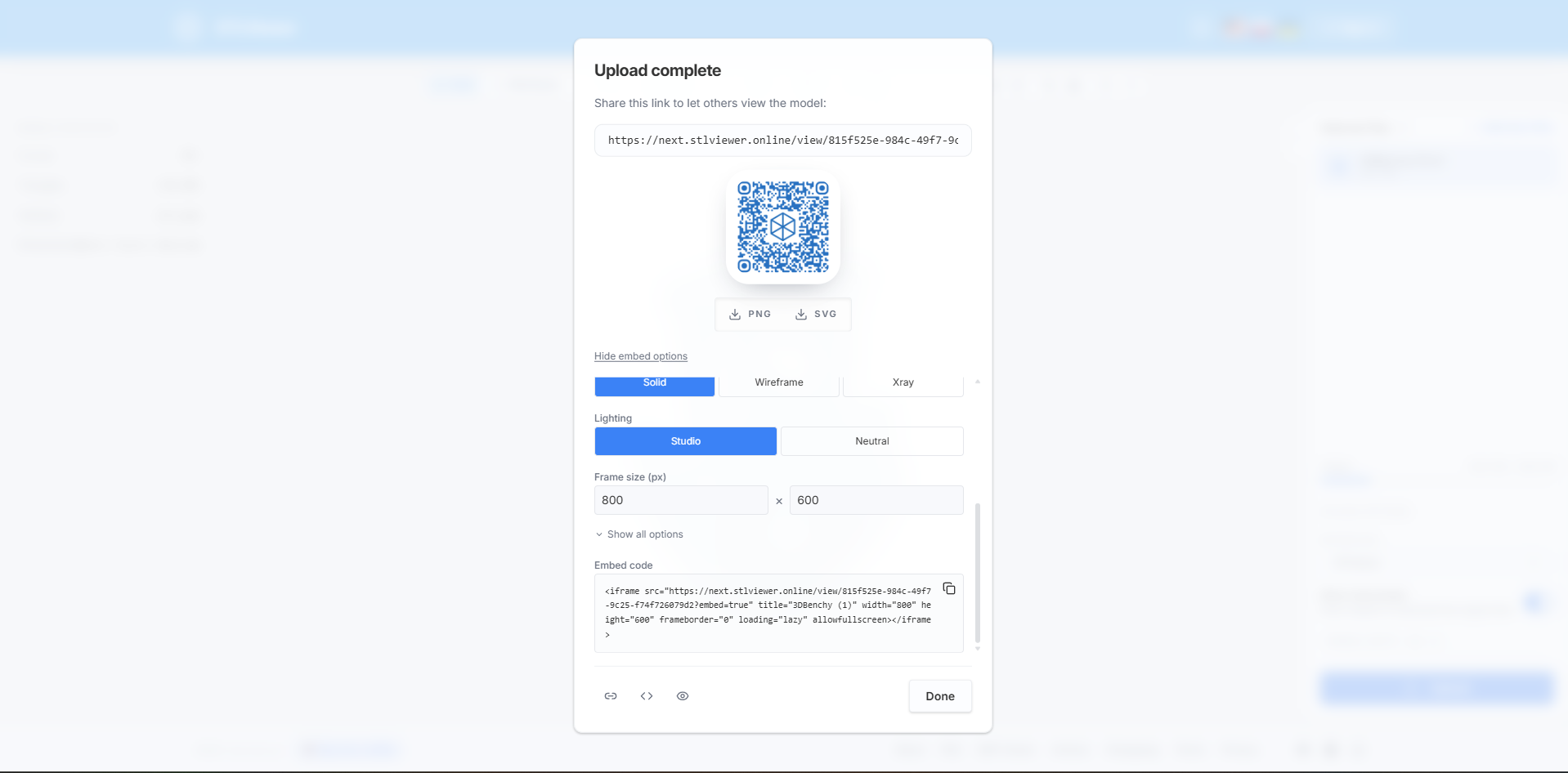
Step 2 — Copy the embed code from the Share dialog
The Share dialog includes a ready-made Embed code block. It contains a complete <iframe> snippet that already points at the canonical embed URL — you do not have to assemble anything by hand. The snippet looks like this:
<iframe src="https://stlviewer.online/view/{shareId}?embed=true"
  title="My 3D model" style="width:100%;height:600px;border:0;"
  loading="lazy" allowfullscreen></iframe>
The key is the ?embed=true parameter. It switches the viewer into chromeless embed mode — the site header, footer, and side panels disappear, leaving only the 3D canvas. Click the copy button next to the block and the snippet lands on your clipboard.
Always use the
https://stlviewer.online/view/{shareId}?embed=trueform. There is no separate/embed/route — embedding is just the regular view page withembed=true.
Step 3 — Paste the iframe into your page
Paste the snippet anywhere HTML is allowed. In a hand-written page, drop it straight into the body:
<h2>Bracket — revision C</h2>
<p>Rotate the part below to inspect the mounting holes.</p>

<iframe src="https://stlviewer.online/view/{shareId}?embed=true"
  title="3D Benchy"
  style="width:100%;height:600px;border:0;"
  loading="lazy" allowfullscreen></iframe>
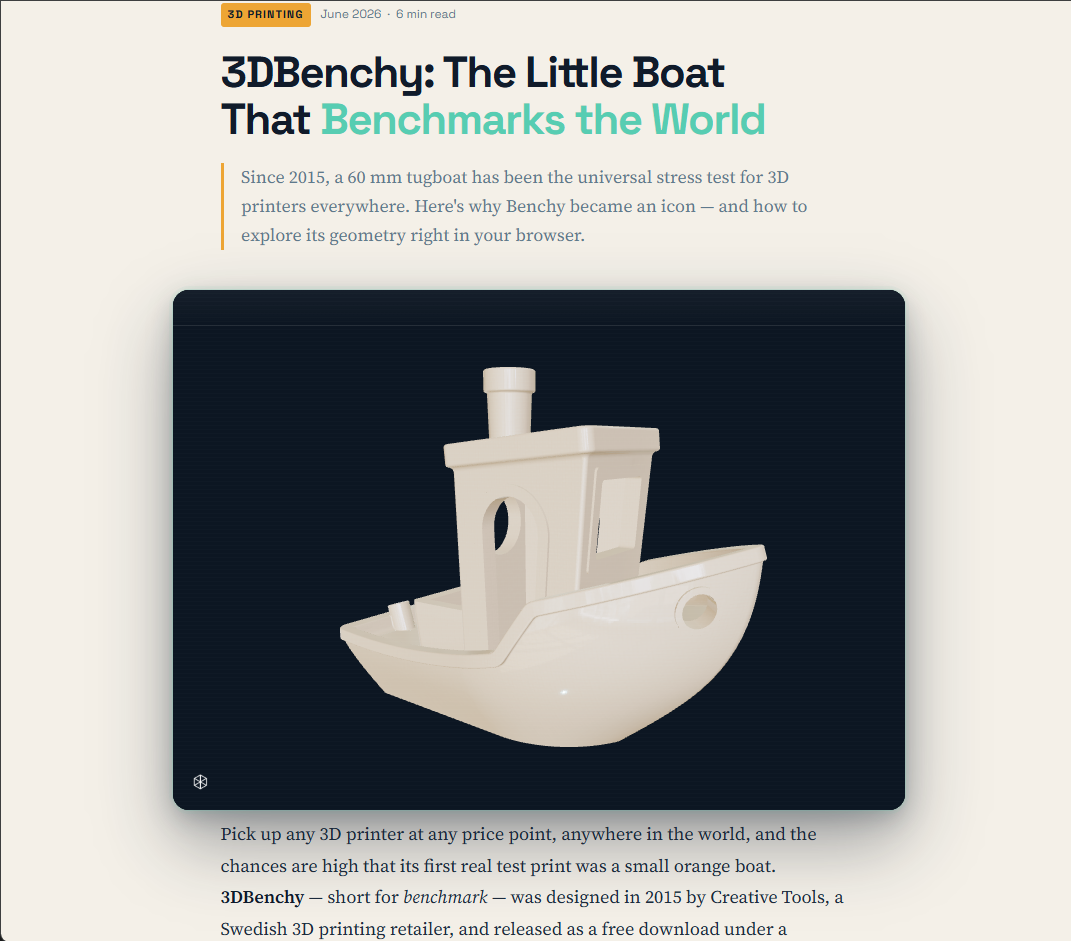
Save the page and the viewer appears inline. Visitors can rotate (drag), zoom (scroll or pinch), and pan (right-click drag or two-finger drag) — exactly like the full app, just without the surrounding chrome.
Step 4 — Size the embed and make it responsive
The example uses width:100% so the viewer fills its container, and a fixed height:600px. That works on most layouts, but on narrow screens a fixed pixel height can feel too tall or too short. Two reliable patterns:
Fixed aspect ratio — the frame keeps its proportions as the page resizes:
<iframe src="https://stlviewer.online/view/{shareId}?embed=true"
  title="My 3D model"
  style="width:100%;aspect-ratio:16/9;border:0;"
  loading="lazy" allowfullscreen></iframe>
Fixed pixel box — when you want exact dimensions:
<iframe src="https://stlviewer.online/view/{shareId}?embed=true"
  title="My 3D model" width="800" height="600"
  frameborder="0" loading="lazy" allowfullscreen></iframe>
A few attributes are worth keeping in every snippet: loading="lazy" defers loading until the viewer scrolls into view (good for page speed), allowfullscreen lets visitors expand the model to full screen, and a descriptive title improves accessibility. The viewer renders at the device's full pixel density, so models stay sharp on high-DPI and mobile screens.
Step 5 — Customize the viewer with URL parameters
Everything about how the embedded model looks and behaves is controlled by query parameters appended to the embed URL. Add them after ?embed=true with &. The parameter names below are the exact ones the viewer reads — for the full table with defaults, see the embed options reference.
| Parameter | Values | What it does |
|---|---|---|
autoRotate | 1 / 0 | Spin the model continuously on load. |
render | solid / wireframe / xray | Render mode. |
material | preset ID or hex | Apply a named material, e.g. metal-steel or wood-walnut, or a custom solid color as a 6-digit hex, e.g. 2196f4. |
light | studio / neutral | Lighting environment. |
background | auto / light / dark / transparent | Canvas backdrop. |
grid | 1 / 0 | Floor grid beneath the model. |
axis | z / y | Which axis points up. |
ui | none / minimal / full | Chrome visibility: canvas only, with toolbar, or full panels. |
attribution | 1 / 0 | Show or hide the small "Powered by STLViewer" badge. |
Boolean parameters accept 1, 0, true, or false. Unknown parameters are ignored and invalid values fall back to sensible defaults, so an embed never breaks because of a typo.
A few practical combinations:
<!-- Auto-rotating steel model, no floor grid -->
<iframe src="https://stlviewer.online/view/{shareId}?embed=true&material=metal-steel&autoRotate=1&grid=0"
  title="My 3D model" style="width:100%;height:600px;border:0;"
  loading="lazy" allowfullscreen></iframe>

<!-- Static, with the toolbar available so visitors can change materials themselves -->
<iframe src="https://stlviewer.online/view/{shareId}?embed=true&autoRotate=0&ui=minimal"
  title="My 3D model" style="width:100%;height:600px;border:0;"
  loading="lazy" allowfullscreen></iframe>
Transparent backgrounds and theming
background=auto (the default) makes the canvas follow the visitor's page theme. To blend the model into a page with its own background colour, use background=transparent so the host page shows through behind the model:
<iframe src="https://stlviewer.online/view/{shareId}?embed=true&background=transparent&autoRotate=1"
  title="My 3D model" style="width:100%;height:600px;border:0;"
  loading="lazy" allowfullscreen></iframe>
You can also force a fixed backdrop with background=light or background=dark regardless of the visitor's theme.
Embedding in WordPress, Webflow, and Notion
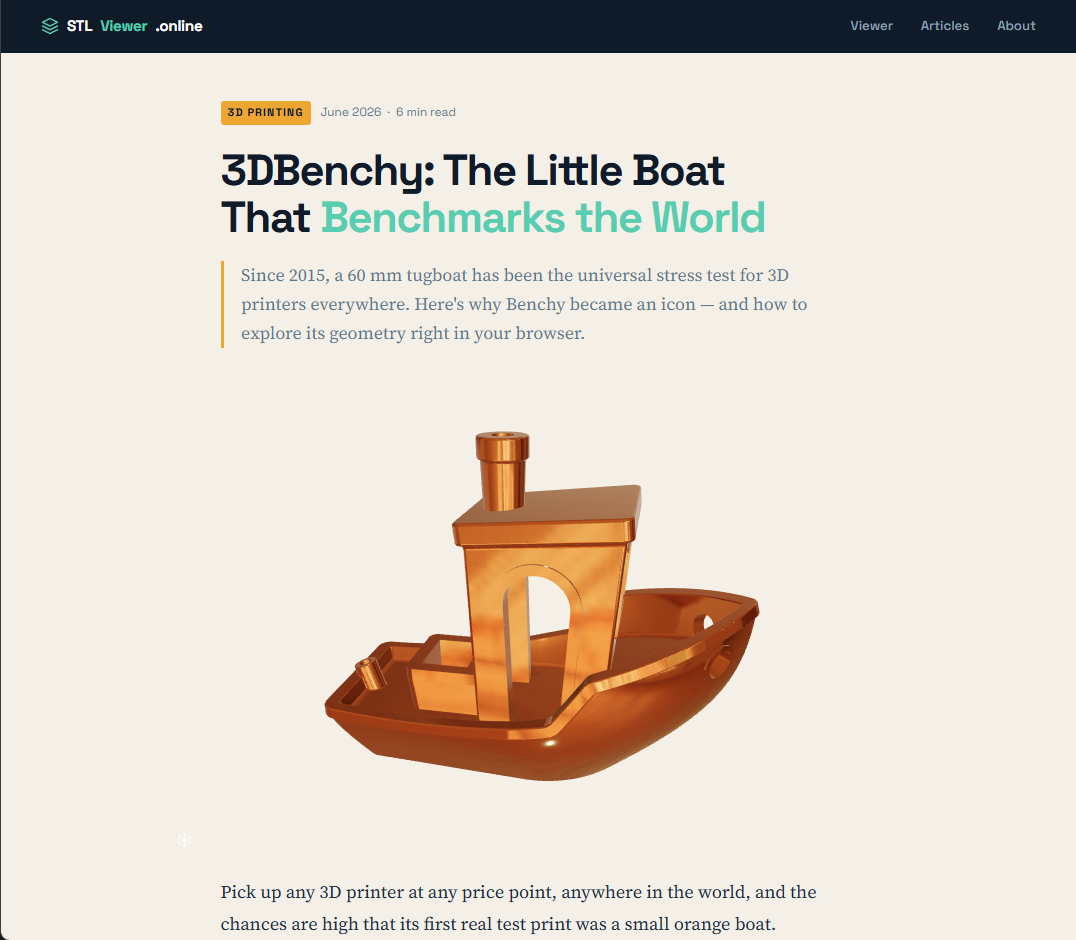
The same iframe works on every platform that accepts custom HTML. Here are the three most common:
WordPress
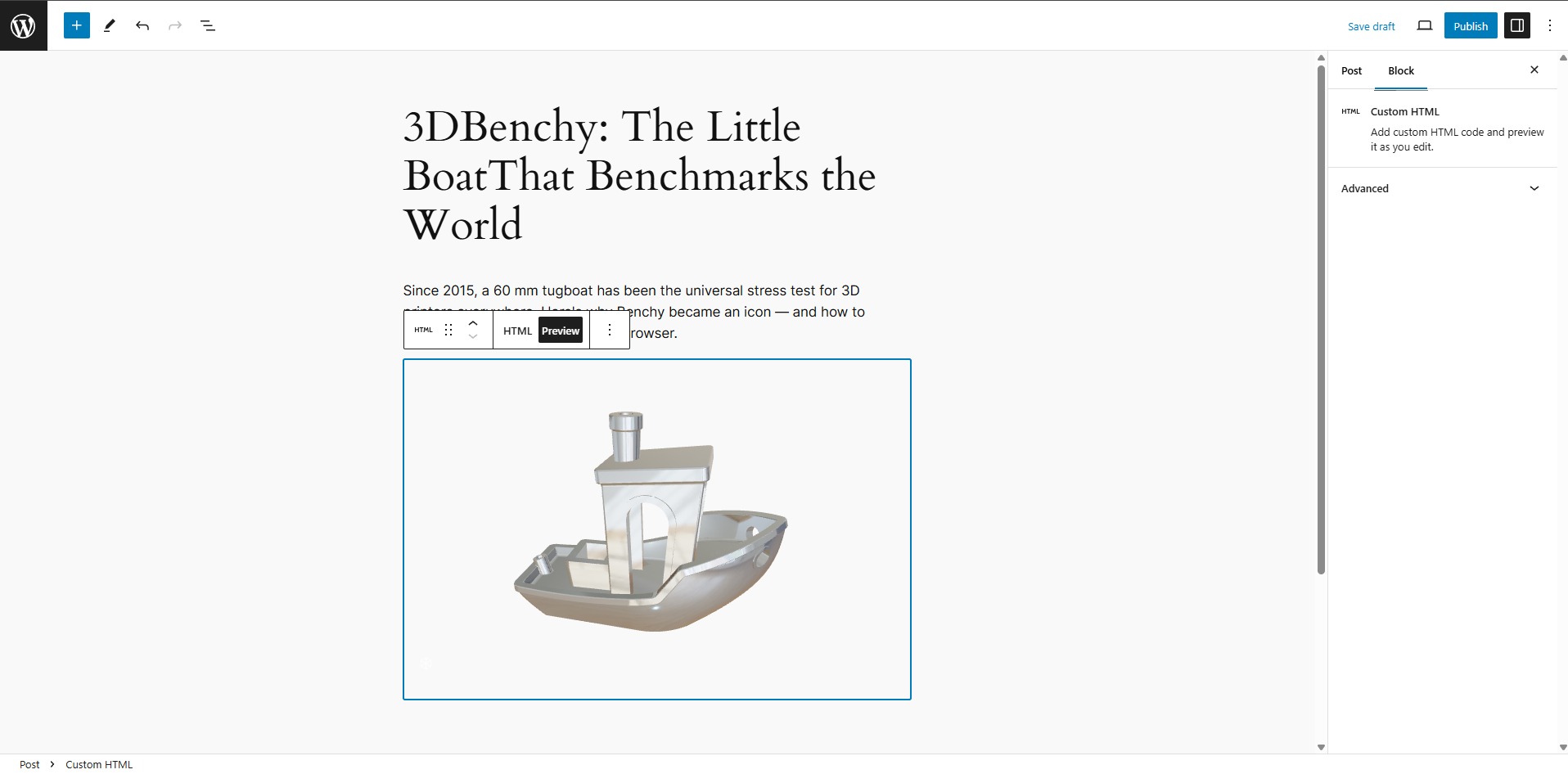
In the block editor, add a Custom HTML block (+ → search "Custom HTML"), paste the iframe snippet, and publish. In the Classic editor, switch to the Text (HTML) tab before pasting. Note that WordPress.com free plans and some hardened security setups strip raw <iframe> tags; if the embed disappears on save, paste just the embed URL into the Embed block, or use a site on a plan that allows custom HTML.
Webflow
Drag an Embed element onto the canvas (Add panel → Components → Embed), paste the iframe into the code editor, and save. The viewer renders in the Designer preview and on the published site. Set the Embed element's width to 100% so it follows your layout.
Notion
Notion does not keep raw <iframe> tags, so paste the URL only — not the full snippet. Type /embed, choose Embed, and paste https://stlviewer.online/view/{shareId}?embed=true. Notion builds the frame for you and the interactive viewer appears in the page. (Pasting the link without the embed block just creates a bookmark, so use the /embed block for the live viewer.)
The same approach works in most other block- or HTML-based tools — Ghost, Confluence, Framer, and similar all accept either an HTML embed or a URL embed block.
Embedding a file you already host (?url=)
If your STL, 3MF, or PLY file already lives on a CDN, GitHub, or your own server, you can display it without uploading to STLViewer first. Use the /view?url= form with a URL-encoded link to the file and add &embed=true:
<iframe src="https://stlviewer.online/view?url=https%3A%2F%2Fcdn.example.com%2Fmodel.stl&embed=true&autoRotate=0"
  title="My 3D model" style="width:100%;height:600px;border:0;"
  loading="lazy" allowfullscreen></iframe>
A few requirements for this path:
- The file URL must use HTTPS and end in
.stl,.3mf, or.ply. - The model is fetched directly by the visitor's browser — no bytes pass through STLViewer's servers.
- Because the fetch is cross-origin, the host must send permissive CORS headers (e.g.
Access-Control-Allow-Origin: *). Without them the embed shows a "Cannot load this model" message instead of the model. - URL-encode the file link so its own query string (such as presigned S3 signatures) survives intact.
- The whole file loads into browser memory, so keep externally hosted models under roughly 100 MB.
Every customization parameter above works alongside ?url= too.
Privacy: what your visitors share
Embedding the viewer does not turn your page into a tracking surface. STLViewer loads no third-party analytics or marketing scripts and sets only the technically necessary cookies required to run the viewer. The model renders in the visitor's own browser via WebGL. Shared model pages are served with noindex directives and are excluded from the sitemap, so your embedded model will not surface in search results. If you embed a hosted file with ?url=, that file is fetched by the visitor's browser directly from your host — STLViewer never sees it.
Troubleshooting
The model area is blank or shows "Cannot load this model." For ?url= embeds this almost always means the host is missing CORS headers, or the link is not HTTPS / does not end in .stl, .3mf, or .ply. For uploaded models, check that the share link has not expired.
The embed vanishes after saving in WordPress. The platform stripped the <iframe>. Use a Custom HTML block on a plan that allows it, or fall back to the URL embed block.
The viewer is cut off or too tall on mobile. Switch from a fixed height to aspect-ratio so the frame scales with the page width.
A parameter seems to do nothing. Confirm the name matches exactly (autoRotate, not autorotate) and that ?embed=true is present. Invalid values silently fall back to defaults.
Frequently asked questions
Do I need an account to embed a 3D model?
No. Anonymous uploads produce a share link and a ready-to-paste embed code right away. An account only adds a longer expiry window (beyond the 7-day anonymous limit) and a dashboard for managing your models.
Does the embedded viewer work in WordPress, Webflow, and Notion?
Yes. Any platform that accepts an <iframe> works — a Custom HTML block in WordPress, an Embed element in Webflow. Notion strips raw iframe tags, so there you use the /embed block and paste the embed URL instead of the full snippet.
Can visitors download my model from an embed?
By default the chromeless embed (ui=none) shows only the 3D canvas with no download button. Whether the original file can be downloaded at all is governed by the model's "Allow download" setting, which you choose at upload time — the same setting that controls the share page.
How do I make the embed background transparent or match my site theme?
Add background=transparent for a see-through canvas that shows the host page behind the model, or background=light / background=dark to force a fixed backdrop. The default, background=auto, follows the visitor's page theme.
Does embedding collect any data from my visitors?
No. STLViewer loads no third-party tracking or analytics scripts and sets only the technically necessary cookies needed to run the viewer. The model renders entirely in the visitor's browser.
See also
- Embed options reference — every parameter, with defaults and material preset IDs
- STLViewer.online feature guide
- How to view an STL file online