
STLViewer normally stores uploaded models in its built-in storage. If you want the actual model files to stay in an account you control, you can connect a Cloudflare R2 bucket. After that, new uploads from your signed-in account are saved in your bucket instead.
In Cloudflare, a "bucket" simply means a storage container for files. You do not need to run a server, set up Cloudflare Workers, use a custom domain, or type commands in a terminal.
This guide walks through the whole setup: creating the bucket, creating a safe access key, connecting it in STLViewer, and understanding what happens afterwards. Most people can do it in about 10-15 minutes.
What changes
- New uploads go to your R2 bucket. Once the connection is active, every new model you upload while signed in is stored there.
- Existing models stay where they are. Models uploaded before you connect R2 keep working in STLViewer's built-in storage. They are not moved automatically.
- Your files remain in your bucket if you disconnect. Disconnecting removes STLViewer's records for those models, but it does not delete the files from R2.
- You do not need to configure CORS. STLViewer reads the file from your bucket and streams it through the app. The visitor's browser does not connect to your bucket directly.
- R2 uploads do not use your STLViewer storage limit. The model files are stored in your own Cloudflare account.
This feature is only for registered users. Uploads made without an account always use built-in storage.
Before you start
You need:
- a Cloudflare account with R2 enabled
- a signed-in STLViewer account
- a payment method in Cloudflare, because Cloudflare asks for one when you enable R2, even if you stay on the free tier
Step 1 - Create an R2 bucket
- Sign in to the Cloudflare dashboard.
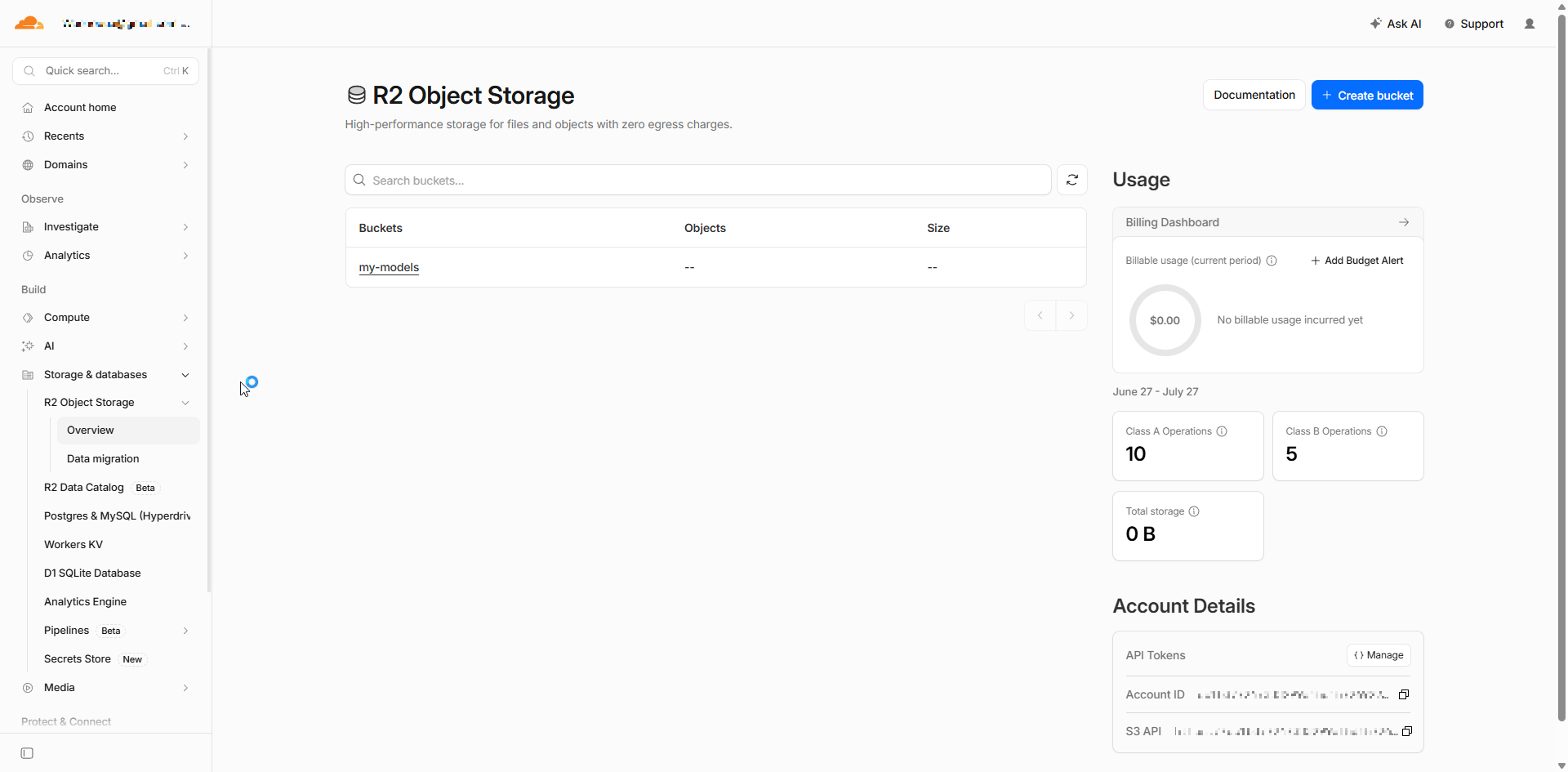
- Open R2 Object Storage.
- Click Create bucket.
- Give the bucket a simple name, for example
stlviewer-models. Bucket names use lowercase letters and cannot be renamed later. - Leave the location at the default unless you have a specific reason to choose a region.
- Click Create bucket.
Step 2 - Create an R2 API token
The token is the key STLViewer uses to save models in your bucket and read them back when someone opens a shared model.
- On the R2 Object Storage page, find API Tokens in the Account Details area and click Manage.
- Click Create API token.
- Choose Account API token. It is the simpler option and stays valid until you revoke it.
- Under Permissions, choose Object Read & Write.
- Limit the token to only the bucket you created for STLViewer. This is safer than allowing access to all buckets.
- Click Create API token.
Do not choose an Admin permission. STLViewer does not need it, and a smaller permission is safer.
Cloudflare then shows the values you need to copy:
| Value | Where to find it |
|---|---|
| Access Key ID | The token screen |
| Secret Access Key | The token screen. It is shown only once. |
| Account endpoint | The token screen, or the bucket's Settings -> S3 API page. It looks like https://<account-id>.r2.cloudflarestorage.com. |
| Bucket name | The name you chose in Step 1 |
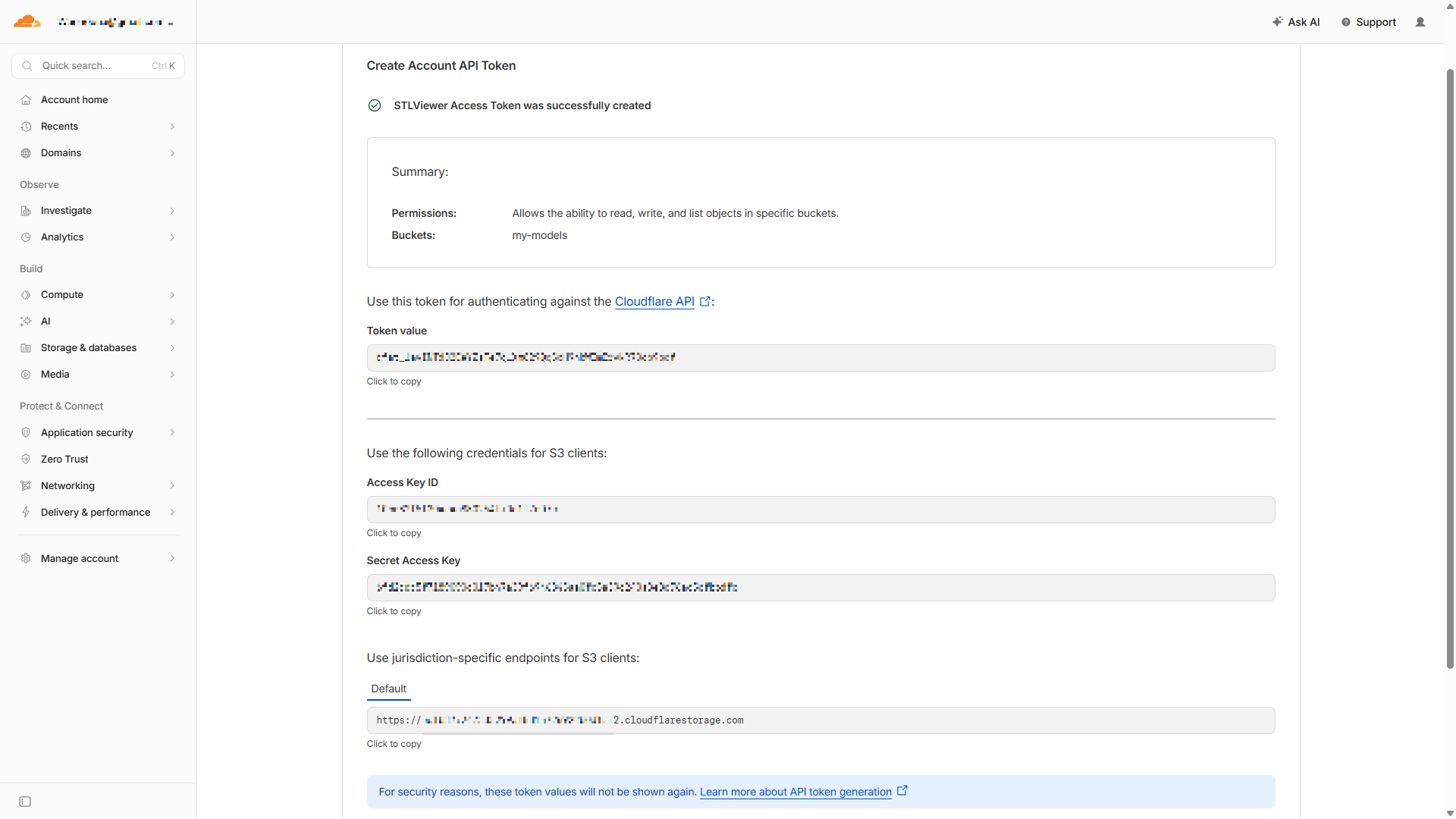
Keep these values somewhere safe until you finish the setup. The Secret Access Key is shown only once. If you close the page before copying it, create a new token.
For the endpoint, use the address ending in r2.cloudflarestorage.com. Do not use a public bucket URL or your own domain.
Step 3 - Connect the bucket in STLViewer
- Sign in to STLViewer.
- Open your Profile page.
- Find the Cloud storage card and click Connect storage.
- Fill in the Connect Cloudflare R2 form:
| Field | What to enter |
|---|---|
| Account endpoint | The S3 API endpoint, for example https://1a2b3c....r2.cloudflarestorage.com |
| Bucket name | The exact bucket name, for example stlviewer-models |
| Access key ID | From the Cloudflare token screen |
| Secret access key | From the Cloudflare token screen |
| Key prefix (optional) | A folder name, for example stlviewer |
The key prefix is optional. If you enter stlviewer, models are saved under paths such as stlviewer/uploads/.... Leave it blank if you want STLViewer to save files at the top level of the bucket.
- Click Connect. The button stays disabled until the required fields are filled in.
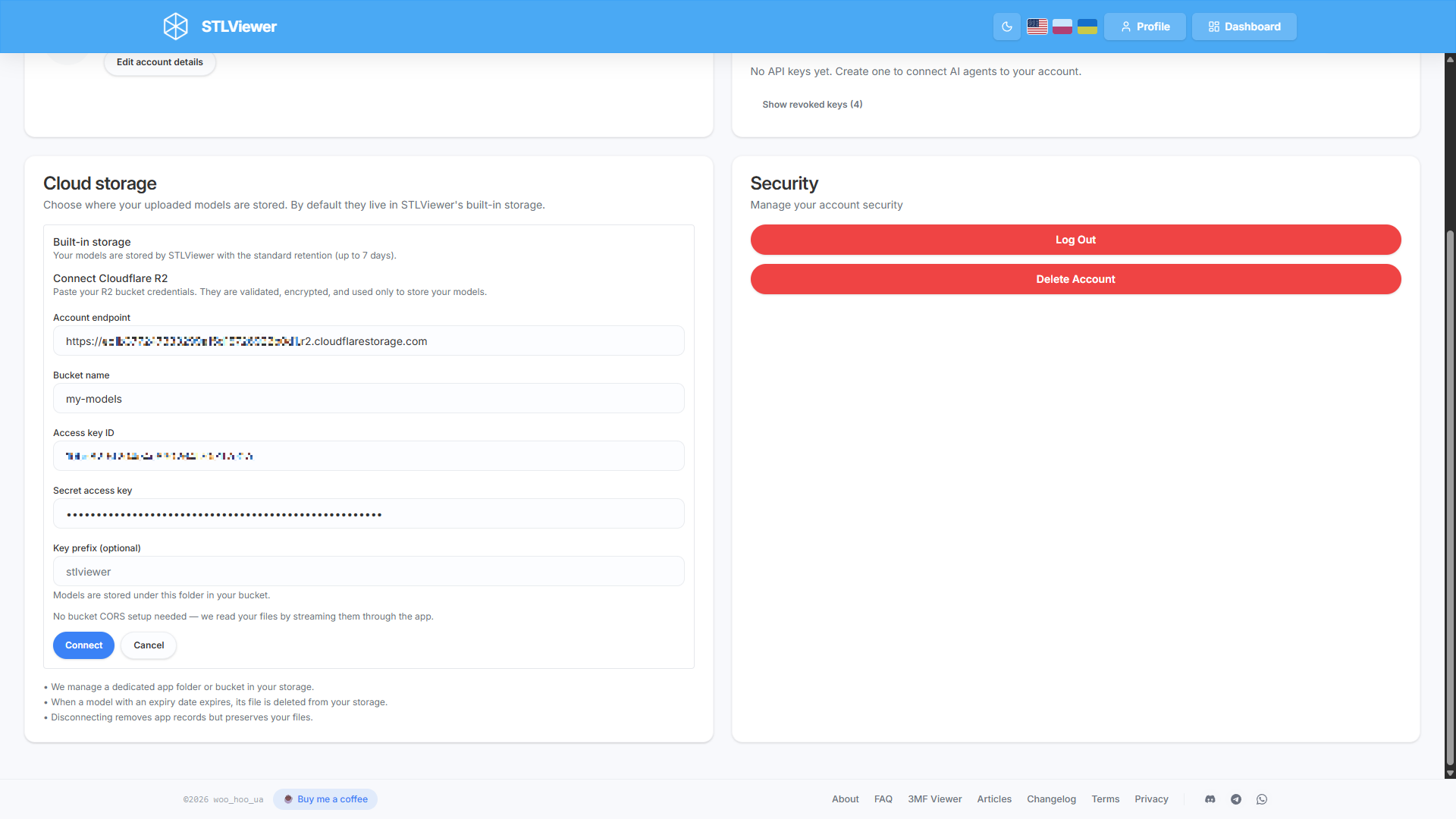
Before saving the connection, STLViewer checks that the bucket can be reached with those credentials. If everything is correct, the card changes to Cloudflare R2 (S3-compatible) and shows a Connected badge. If something is wrong, STLViewer shows an error and does not save the connection.
Your secret access key is encrypted before it is stored. STLViewer never shows it back to you and never sends it to the browser.
Using your own storage
- Uploading works the same as before. New signed-in uploads go to your R2 bucket.
- You can check that it works in Cloudflare. Upload a test model, then open the bucket in Cloudflare. You should see a new file under a path like
uploads/model/...or under your prefix if you set one. - Sharing and viewing still work through STLViewer. A visitor does not need access to your Cloudflare account or bucket.
- Deleting a model in STLViewer also deletes the file from your bucket. This is permanent.
- Models still expire. For now, each shared model still has a retention period. When it expires, STLViewer deletes the file from your R2 bucket. If you need to keep the original forever, keep your own separate copy too.
Managing the connection
Status. The cloud storage card can show Connected, Needs reconnection, or Access revoked. If there is a problem, the latest error appears below the status.
If the token stops working. If you delete or replace the R2 token in Cloudflare, STLViewer will mark the connection as Needs reconnection the next time it tries to use the bucket. Shared links will not turn into 404 pages. Visitors will see a "temporarily unavailable" message because the model record still exists, but STLViewer cannot reach the file. To fix it, create a new R2 token and reconnect the bucket.
Disconnecting. When you click Disconnect, STLViewer asks you to type DISCONNECT to confirm. This is intentional because the action cannot be undone inside STLViewer. Disconnecting removes STLViewer's records for models stored in that bucket, so their share links stop working. The files in your R2 bucket stay there.
Switching buckets. There is no one-click switch. Disconnect the current bucket, then connect the new one.
Troubleshooting
"The access key or secret was rejected by the bucket." The Access Key ID or Secret Access Key is wrong, or the token does not have write access. Copy both values again and make sure the token has Object Read & Write permission. If you are not sure about the secret, create a new token.
"The bucket was not found at this endpoint." Check the bucket name and the endpoint. The endpoint should end with r2.cloudflarestorage.com. If you created the bucket in a specific jurisdiction, such as the EU, use the endpoint shown in that bucket's Settings -> S3 API page.
"Could not connect to the bucket with these settings." The endpoint is usually the problem. It should start with https:// and look like https://<account-id>.r2.cloudflarestorage.com.
"An active storage connection already exists." You already have a bucket connected. Disconnect it first.
Frequently asked questions
Do I need my own storage to use STLViewer?
No. Built-in storage is the default and works for everyone, including anonymous uploads. Connecting your own Cloudflare R2 bucket is optional.
Do I have to configure CORS on my bucket?
No. STLViewer streams files through the app, so the browser never reads from your bucket directly.
Will connecting move my existing models?
No. Only new signed-in uploads go to your R2 bucket. Existing models stay in built-in storage and keep working as before.
What happens to my files if I disconnect?
The files stay in your R2 bucket. STLViewer only removes its own model records, which means the old share links stop working.
Can I keep a model in my own bucket forever?
Not yet. Today each model still has an expiry date. When it expires, the file is deleted from your bucket. A keep-forever option for own-storage models is planned, but it is not available yet.